A few steps at Google, then one upload here. Choose Chrome for browsing history, YouTube for what you watched, or both -
a narrow request comes back in minutes and stays small enough to upload. You can upload your entire Google Takeout file and we will just extract your history from it
Here
Upload the archive
Uploading your file
Starting…
What if I have moved, or the clocks changed?
Daylight saving is applied per visit, so a file spanning several years
stays correct. If you have lived in more than one country, pick where
you spent most of it — Google does not record where you were.
What exactly should I upload?
Upload the zip as it arrived, or open it and take just
Chrome/BrowserHistory.json and
YouTube and YouTube Music/history/watch-history.json.
There is no account to create
and nothing to install.
Do'nt have the file yet? Want to know how to get it? These seven steps get Google to send you one,
and the archive usually arrives within minutes.
01
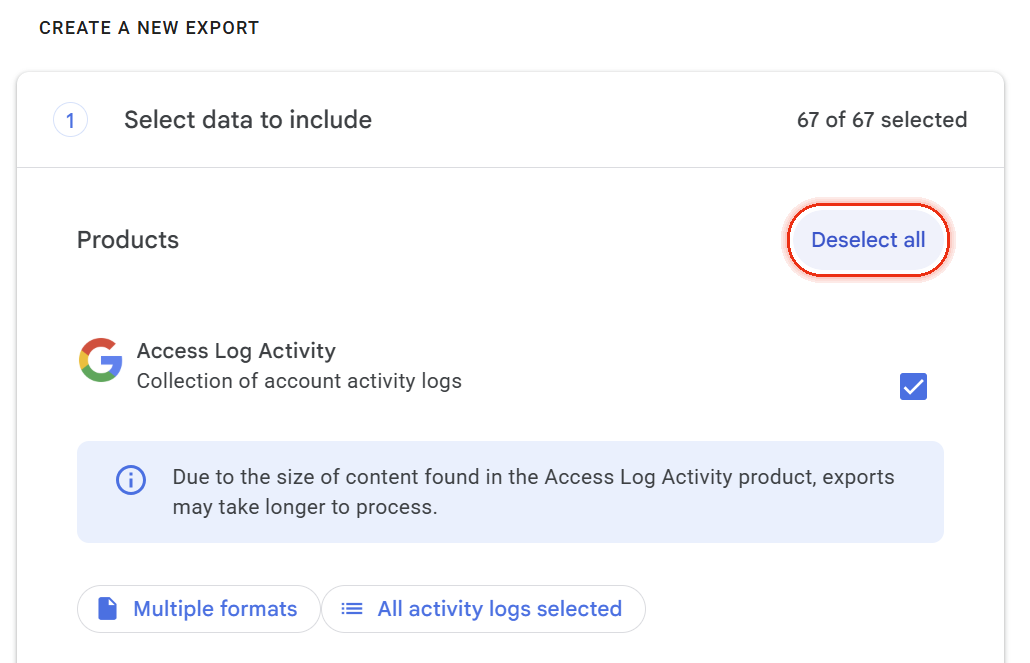
Open Takeout and deselect all
Google preselects every product it holds. Hit "Deselect all" first — otherwise the archive runs to gigabytes of photos and mail and takes hours to build.
Show me this screen
02
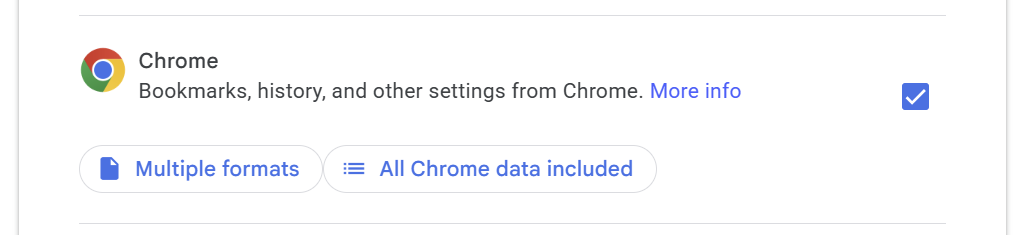
Tick Chrome (for Browser History)
Scroll the product list to Chrome and tick it.
Show me this screen
03
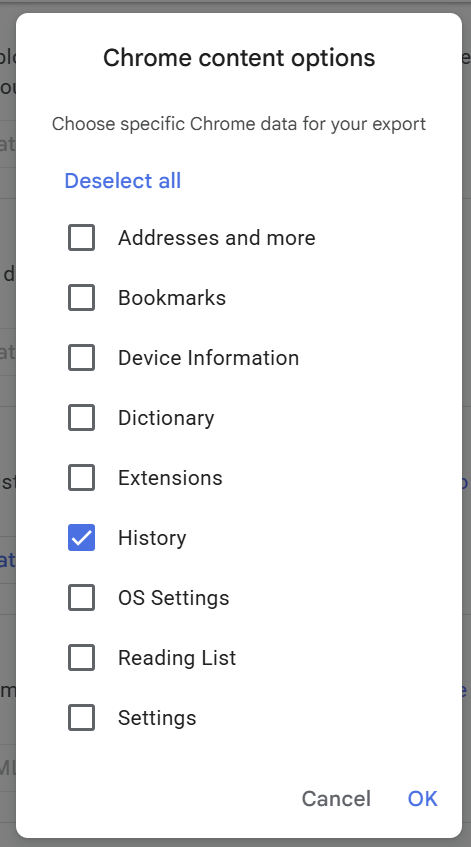
Inside Chrome, choose BrowserHistory
Open Chrome's own data list and select BrowserHistory on its own. Bookmarks, passwords and extensions are not part of a history report and only slow the export down.
Show me this screen
04
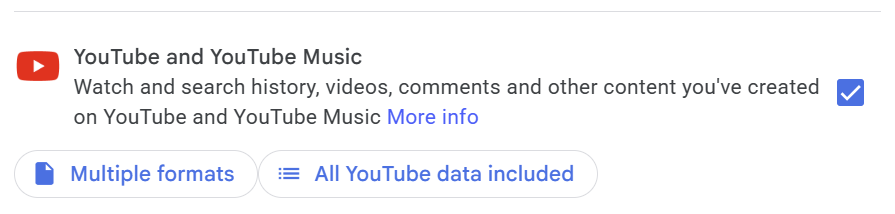
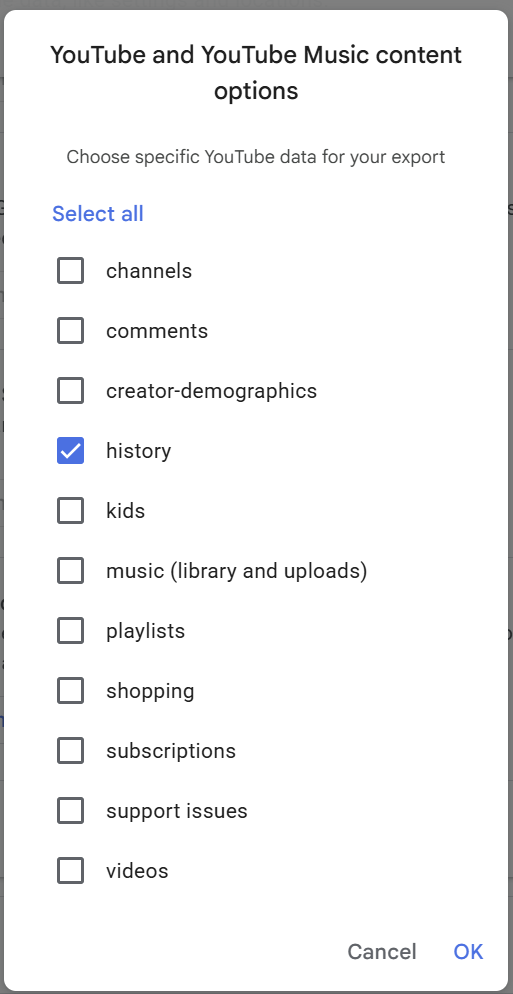
Tick YouTube (for YouTube watch history)
Towards the end of the product list, there is an option for YouTube history.
Show me this screen
05
Inside All YouTube Data Included, choose History
Open the YouTube data option and select History on its own.
Show me this screen
06
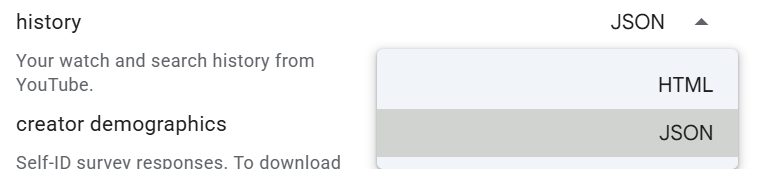
Inside YouTube Multiple Formats, choose JSON for History
Open the YouTube Multiple Formats dialog, scroll down to History towards the end and select JSON.
Show me this screen
07
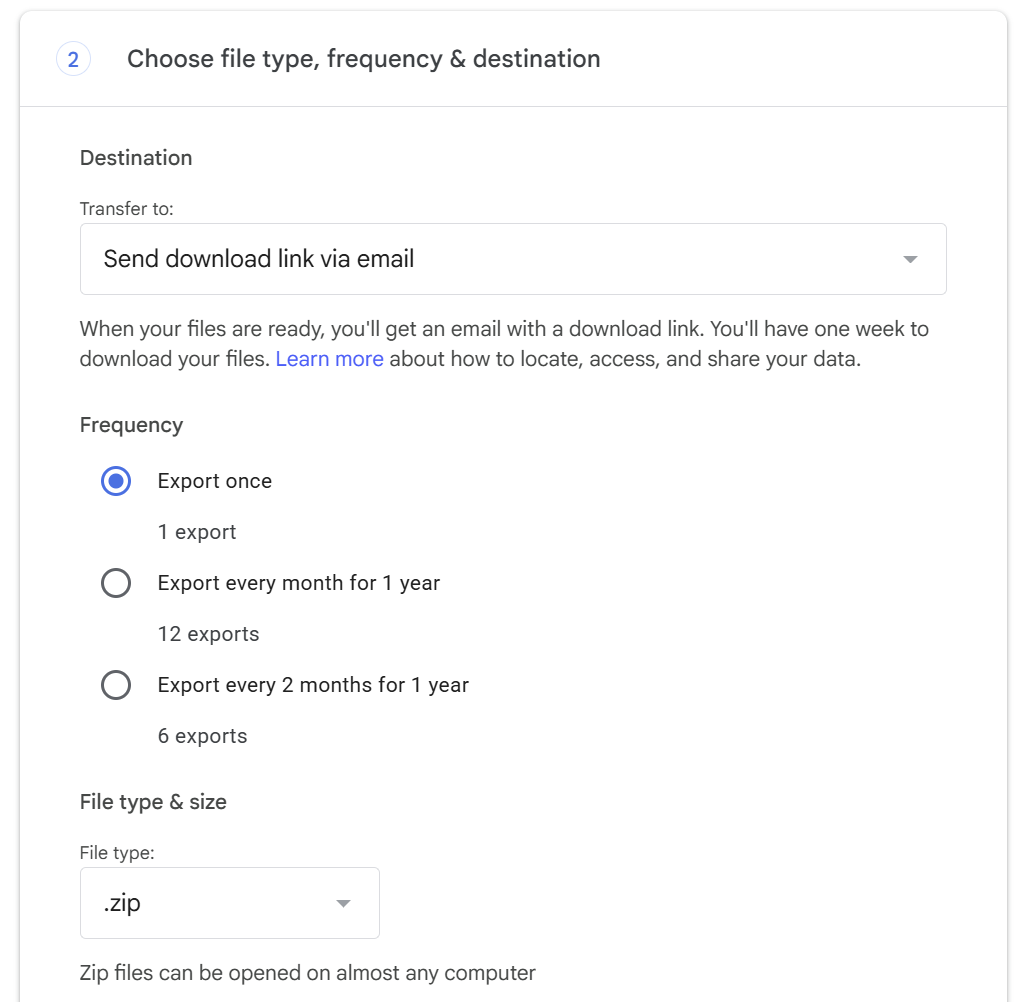
Export, then watch your inbox
Google emails a download link when the archive is ready. With only some settings selected, that might only be a matter of minutes.