Home
/
Edge history file
90 days, no waiting
Read Microsoft Edge's history file
Edge runs the same engine as Chrome, so its history file has the same shape and reads exactly the same way. It sits in a different folder, and that is the only real difference.
On your computer
The folder you are looking for
C:\Users\<your username>\AppData\Local\Microsoft\Edge\User Data\Default
01
Open the Run dialog
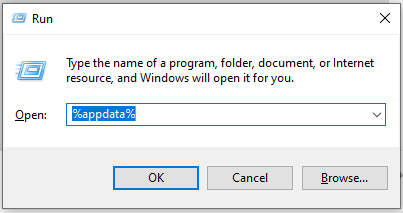
Press the Windows key and R together, type %AppData% and press Enter.
02
Go up to AppData, then into Local
Explorer usually opens in a folder called Roaming. If it does, go up one level to AppData itself, then open the Local folder.
03
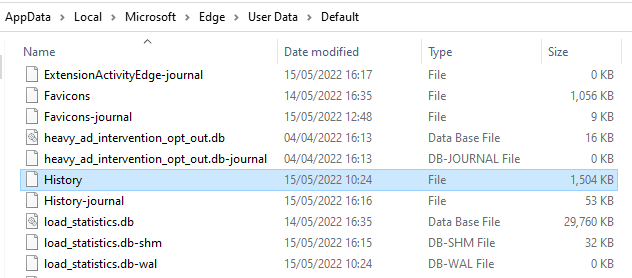
Find Microsoft · Edge · User Data · Default
There are a lot of folders in Local. Scroll down to Microsoft, then Edge, then User Data, then Default. Scroll past the folders until you reach the files: the one you want is called History, with no file extension.
04
Upload it
Use the panel on this page to upload that History file. Pick your time zone first — the file records everything in UTC, and we convert it for you.
What comes back
We convert the SQLite database, with its Unix timestamps and escaped Unicode titles, into something readable — the same charts, categories and rankings as the Takeout report, and an Excel file to keep.
Then here
Upload the History file
Your time zone - the file records everything in UTC
(UTC-12:00) Dateline Standard Time
(UTC-11:00) UTC-11
(UTC-10:00) Hawaiian Standard Time
(UTC-09:30) Marquesas Standard Time
(UTC-09:00) Aleutian Standard Time
(UTC-09:00) UTC-09
(UTC-08:00) Alaskan Standard Time
(UTC-08:00) UTC-08
(UTC-07:00) Mountain Standard Time (Mexico)
(UTC-07:00) Pacific Standard Time
(UTC-07:00) Pacific Standard Time (Mexico)
(UTC-07:00) US Mountain Standard Time
(UTC-07:00) Yukon Standard Time
(UTC-06:00) Canada Central Standard Time
(UTC-06:00) Central America Standard Time
(UTC-06:00) Central Standard Time (Mexico)
(UTC-06:00) Mountain Standard Time
(UTC-05:00) Central Standard Time
(UTC-05:00) Easter Island Standard Time
(UTC-05:00) Eastern Standard Time (Mexico)
(UTC-05:00) SA Pacific Standard Time
(UTC-04:00) Central Brazilian Standard Time
(UTC-04:00) Cuba Standard Time
(UTC-04:00) Eastern Standard Time
(UTC-04:00) Haiti Standard Time
(UTC-04:00) SA Western Standard Time
(UTC-04:00) Turks And Caicos Standard Time
(UTC-04:00) US Eastern Standard Time
(UTC-04:00) Venezuela Standard Time
(UTC-03:00) Argentina Standard Time
(UTC-03:00) Atlantic Standard Time
(UTC-03:00) Bahia Standard Time
(UTC-03:00) E. South America Standard Time
(UTC-03:00) Magallanes Standard Time
(UTC-03:00) Montevideo Standard Time
(UTC-03:00) Pacific SA Standard Time
(UTC-03:00) Paraguay Standard Time
(UTC-03:00) SA Eastern Standard Time
(UTC-03:00) Tocantins Standard Time
(UTC-02:30) Newfoundland Standard Time
(UTC-02:00) Mid-Atlantic Standard Time
(UTC-02:00) Saint Pierre Standard Time
(UTC-02:00) UTC-02
(UTC-01:00) Cape Verde Standard Time
(UTC-01:00) Greenland Standard Time
(UTC+00:00) Azores Standard Time
(UTC+00:00) Greenwich Standard Time
(UTC+00:00) Sao Tome Standard Time
(UTC+00:00) UTC
(UTC+01:00) GMT Standard Time
(UTC+01:00) Morocco Standard Time
(UTC+01:00) W. Central Africa Standard Time
(UTC+02:00) Central Europe Standard Time
(UTC+02:00) Central European Standard Time
(UTC+02:00) Kaliningrad Standard Time
(UTC+02:00) Libya Standard Time
(UTC+02:00) Namibia Standard Time
(UTC+02:00) Romance Standard Time
(UTC+02:00) South Africa Standard Time
(UTC+02:00) South Sudan Standard Time
(UTC+02:00) Sudan Standard Time
(UTC+02:00) W. Europe Standard Time
(UTC+03:00) Arab Standard Time
(UTC+03:00) Arabic Standard Time
(UTC+03:00) Belarus Standard Time
(UTC+03:00) E. Africa Standard Time
(UTC+03:00) E. Europe Standard Time
(UTC+03:00) Egypt Standard Time
(UTC+03:00) FLE Standard Time
(UTC+03:00) GTB Standard Time
(UTC+03:00) Israel Standard Time
(UTC+03:00) Jordan Standard Time
(UTC+03:00) Middle East Standard Time
(UTC+03:00) Russian Standard Time
(UTC+03:00) Syria Standard Time
(UTC+03:00) Turkey Standard Time
(UTC+03:00) Volgograd Standard Time
(UTC+03:00) West Bank Standard Time
(UTC+03:30) Iran Standard Time
(UTC+04:00) Arabian Standard Time
(UTC+04:00) Astrakhan Standard Time
(UTC+04:00) Azerbaijan Standard Time
(UTC+04:00) Caucasus Standard Time
(UTC+04:00) Georgian Standard Time
(UTC+04:00) Mauritius Standard Time
(UTC+04:00) Russia Time Zone 3
(UTC+04:00) Saratov Standard Time
(UTC+04:30) Afghanistan Standard Time
(UTC+05:00) Ekaterinburg Standard Time
(UTC+05:00) Pakistan Standard Time
(UTC+05:00) Qyzylorda Standard Time
(UTC+05:00) West Asia Standard Time
(UTC+05:30) India Standard Time
(UTC+05:30) Sri Lanka Standard Time
(UTC+05:45) Nepal Standard Time
(UTC+06:00) Bangladesh Standard Time
(UTC+06:00) Central Asia Standard Time
(UTC+06:00) Omsk Standard Time
(UTC+06:30) Myanmar Standard Time
(UTC+07:00) Altai Standard Time
(UTC+07:00) N. Central Asia Standard Time
(UTC+07:00) North Asia Standard Time
(UTC+07:00) SE Asia Standard Time
(UTC+07:00) Tomsk Standard Time
(UTC+07:00) W. Mongolia Standard Time
(UTC+08:00) China Standard Time
(UTC+08:00) North Asia East Standard Time
(UTC+08:00) Singapore Standard Time
(UTC+08:00) Taipei Standard Time
(UTC+08:00) Ulaanbaatar Standard Time
(UTC+08:00) W. Australia Standard Time
(UTC+08:45) Aus Central W. Standard Time
(UTC+09:00) Korea Standard Time
(UTC+09:00) North Korea Standard Time
(UTC+09:00) Tokyo Standard Time
(UTC+09:00) Transbaikal Standard Time
(UTC+09:00) Yakutsk Standard Time
(UTC+09:30) AUS Central Standard Time
(UTC+09:30) Cen. Australia Standard Time
(UTC+10:00) AUS Eastern Standard Time
(UTC+10:00) E. Australia Standard Time
(UTC+10:00) Tasmania Standard Time
(UTC+10:00) Vladivostok Standard Time
(UTC+10:00) West Pacific Standard Time
(UTC+10:30) Lord Howe Standard Time
(UTC+11:00) Bougainville Standard Time
(UTC+11:00) Central Pacific Standard Time
(UTC+11:00) Magadan Standard Time
(UTC+11:00) Norfolk Standard Time
(UTC+11:00) Russia Time Zone 10
(UTC+11:00) Sakhalin Standard Time
(UTC+12:00) Fiji Standard Time
(UTC+12:00) Russia Time Zone 11
(UTC+12:00) UTC+12
(UTC+13:00) Kamchatka Standard Time
(UTC+13:00) New Zealand Standard Time
(UTC+13:00) Samoa Standard Time
(UTC+13:00) Tonga Standard Time
(UTC+13:00) UTC+13
(UTC+13:45) Chatham Islands Standard Time
(UTC+14:00) Line Islands Standard Time
Daylight saving is applied per visit, so a file spanning several
years stays correct.
Uploading your file
Starting…
The file is called History and has no file extension.
There is no account to create and nothing to install.